
Networking
Business Networking Basics
An office network is the path between people, printers, and the internet. You can learn enough of it to describe a fault, keep guest devices off staff files, and avoid opening doors you do not understand.
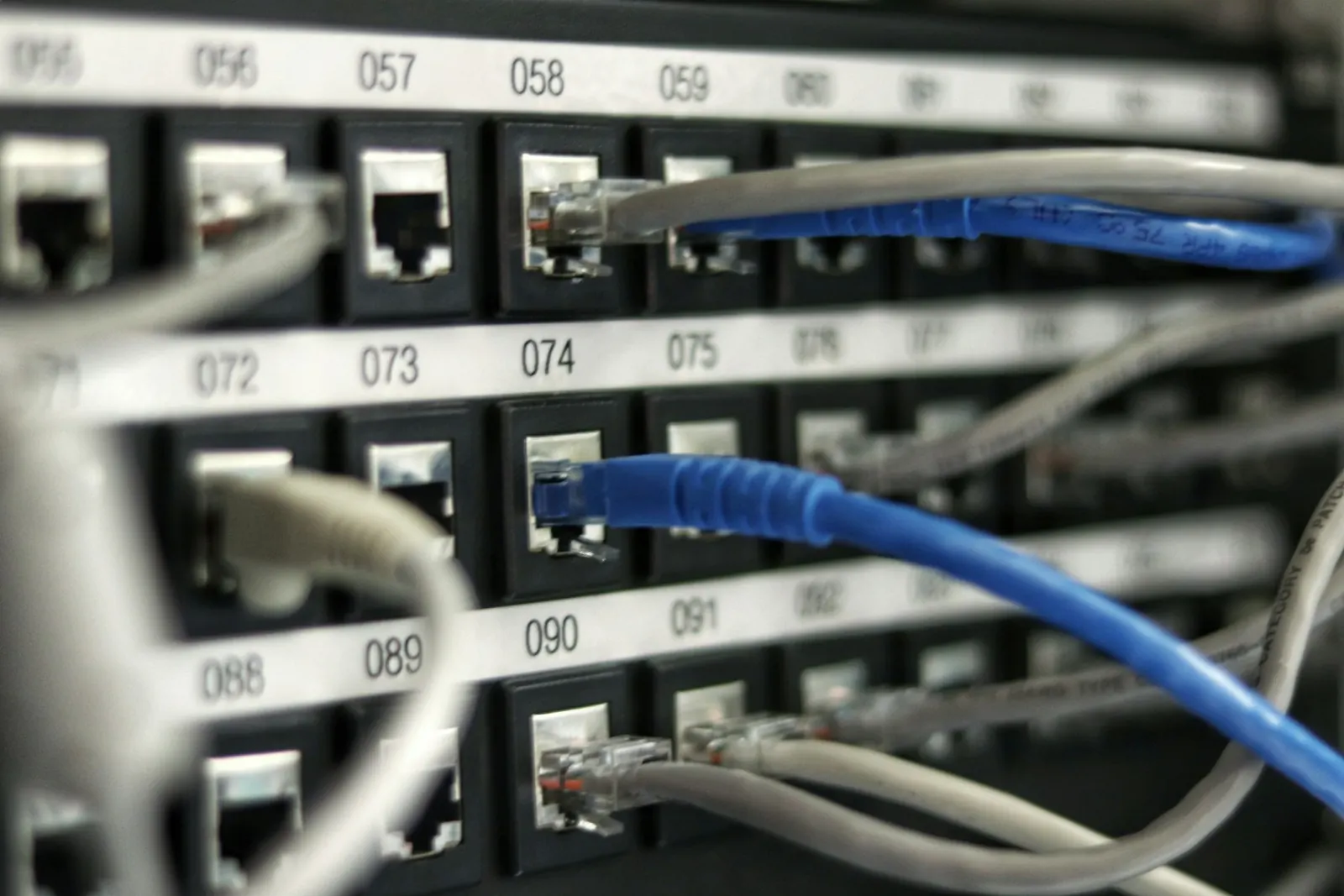
The pieces, in the order traffic travels
The internet arrives on a circuit from a provider. A modem or gateway hands that circuit to a router. The router is the decision point: which devices may leave the office, and how they share the connection. A switch is a quieter box that gives more sockets to the same network. Wi-Fi is a radio attached to that network, not a second internet.
If you remember one sentence: the router is the border, the switch is extra ports, Wi-Fi is the air in the room. People say “the Wi-Fi is down” when they mean any of those layers. Ask whether the lights on the router still show a connection, and whether a cable-connected PC still works. That splits “radio problem” from “the building has no internet”.
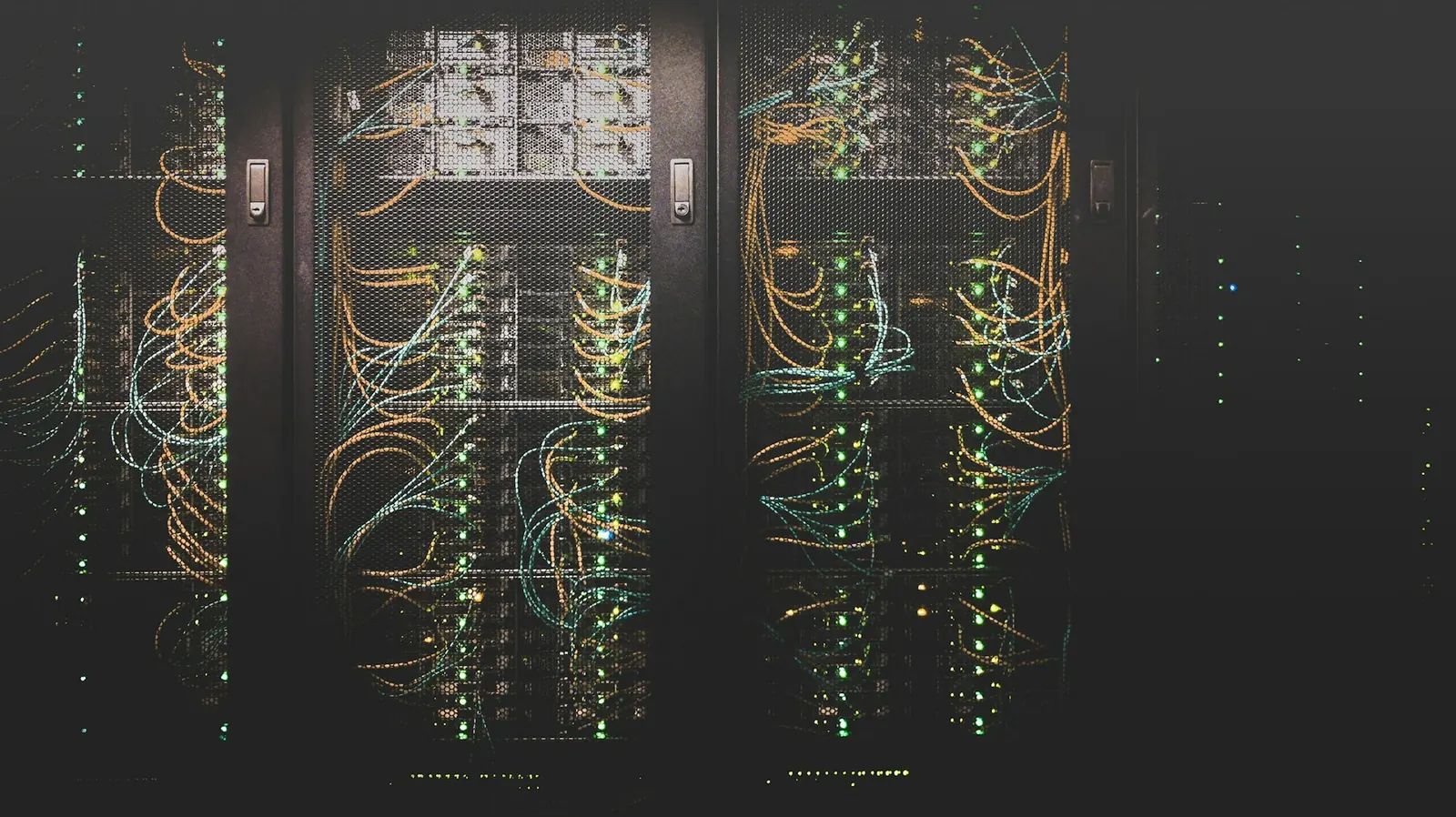
Walk-through: find your router
- Follow the cable that comes from the wall or from the provider’s device. The next box with several Ethernet ports and Wi-Fi antennas is usually the router.
- Look at the lights without unplugging anything. A port light that is off on the wall side is a different problem from all lights dark.
- Read the label. Note the brand, the network name (SSID) printed on the sticker, and whether a second name says Guest.
- On a working computer, open a browser and see whether you can reach a public site. Then see whether you can reach a local printer. Those two tests separate “no internet” from “no local network”.
- Do not press a reset button to “see if it helps”. A reset often wipes the Wi-Fi name and the port forwarding someone set years ago, and you may not have the recovery information.
Staff Wi-Fi and guest Wi-Fi
Staff devices need to reach printers and shared folders. Visitors need the internet for mail and a browser. Those are different jobs. A guest network that is isolated cannot see the printer, which is inconvenient for a visitor and correct for a customer who should not browse payroll shares.
Give visitors the guest name and password. Do not hand out the staff password because the printer is on staff Wi-Fi. If a visitor must print, use email-to-print or a staff member sends the file. Convenience here is how offices accidentally publish their file server to every phone in the waiting room.

What “the internet is down” usually is
Example A: only your laptop is offline, phones still work. Forget the Wi-Fi network, reconnect, check airplane mode. Example B: every device is offline, the router internet light is off. That is the circuit or the provider. Rebooting laptops will not help. Example C: websites load, the line-of-business app does not. The network path to the internet works; the application or its own server is the fault.
Write which example you are in before you change cables. Random cable pulling creates a fourth example nobody can diagnose.
VPNs, in plain language
A virtual private network (VPN) wraps your traffic so that, from the application’s point of view, you look like you are on the office network. It is useful for a shared drive that is not on the public internet. It is not magic privacy for every website, and a personal VPN app is not the same as the company VPN.
If your workplace issued a VPN, install only that one, and disconnect it when you do not need office resources. Nested VPNs and random free VPN apps add failure modes and sometimes steal the traffic they claim to protect.

Safety habits on a small network
Do not open a port on the router because a YouTube video said a game or a camera needs it, unless you understand what you are exposing. Cameras and “smart” plugs with default passwords are a common way strangers reach a network.
- Change the router’s admin password from the printed default if you are the person who is allowed to. Record the new password where the company keeps other secrets, not on the router itself in the open.
- Keep firmware updates for the router on a calendar if you own that job. An unpatched home-office gateway is a favourite target.
- Do not plug an unknown USB network adapter or a stranger’s hotspot “just to get online” into a computer that holds client files.
- If you outgrow a single consumer router, that is a design discussion, not an emergency. Read fundamentals and list what must stay reachable.
Common mistakes
Hiding the SSID and believing that is security. It is not; it just makes support harder. Using the same password for Wi-Fi and for email. Extending Wi-Fi with a second cheap router in “default” mode, which accidentally creates two networks named the same thing.
Another mistake is treating plant equipment, shop-floor controllers, or medical devices as if they were laptops on office Wi-Fi. This guide does not cover those systems. Keep them off the guest network and off any advice you read here.
Networking checklist
- You can point at the router and say what the wall cable is for.
- Staff and guest networks are different names, or you have confirmed you only have one network and you know who is on it.
- You can run the three “internet is down” tests: only me, everyone, or only one app.
- Nobody has pressed Reset this month as a first step.
- Cameras, doorbells, and TVs are not sitting on the same login as payroll, or you have written down that they are and that this is a problem.
- VPN use, if any, is the workplace one, not a free app from an ad.
Questions people ask
Should I buy a mesh system this week?
Only if coverage is the actual problem: some rooms have no signal, and a phone’s Wi-Fi meter shows it. Mesh does not fix a dead internet circuit.
Will you configure our firewall?
No. This page teaches you to describe the network you have. It does not remotely manage equipment.
Files and mail sit on this network
Once the path is understandable, Microsoft 365 and backup habits matter more than extra access points.